
News Daily India
  • Home
  • DMCA
  • Privacy Policy
  • Contact Us
What's Hot

Commercial vs. Residential Property Investment in Dubai: Which Delivers Stronger Returns in 2026-27?

December 3, 2025

Evolution of Mirinda Advertising in India From the 90s to Now

November 6, 2025

Why RCS Services and CCaaS are Essential for Modern MSME Communication

October 14, 2025
Facebook Twitter Instagram
Trending
  • Commercial vs. Residential Property Investment in Dubai: Which Delivers Stronger Returns in 2026-27?
  • Evolution of Mirinda Advertising in India From the 90s to Now
  • Why RCS Services and CCaaS are Essential for Modern MSME Communication
  • Key Differences Between a Kurta and Kurti
  • Queenways Honors ‘Made in Heaven’ 30th Anniversary with New Videos
  • Crypto Payment Cards and What They Mean for Everyday Spending
  • Arbitrage Betting as an Alternative to Business: Reality or Illusion?
  • Easy Steps to Transform Your Day Makeup Look to Night Makeup Look
Facebook Twitter Instagram
News Daily India
Subscribe
Saturday, March 28
  • Home
  • Entertainment
    • Bollywood
    • Hollywood
    • South
    • Web Series
    • TV
  • Lifestyle
    • Horoscope
    • Health & Fitness
    • Travel
  • Career
    • Education
    • Job Alert
  • Auto
    • Bike News
    • Car News
  • Sports
    • Cricket
  • Net Worth

    Is Anodizing Aluminum Expensive: A Comprehensive Guide

    November 16, 2024

    Why the Best Personal Loans Aren’t Always the Ones with the Lowest Rates?

    March 19, 2024
  • Business
  • Tech
  • Crypto
  • Photos
News Daily India
Home»Tech

Laptop Has Become Slow So Dont Worry By Changing These Setting You Can Easily Increase The Speed

News Daily IndiaBy News Daily IndiaApril 15, 2023Updated:April 16, 2023 Tech No Comments3 Mins Read
Share
Facebook Twitter LinkedIn Pinterest Email

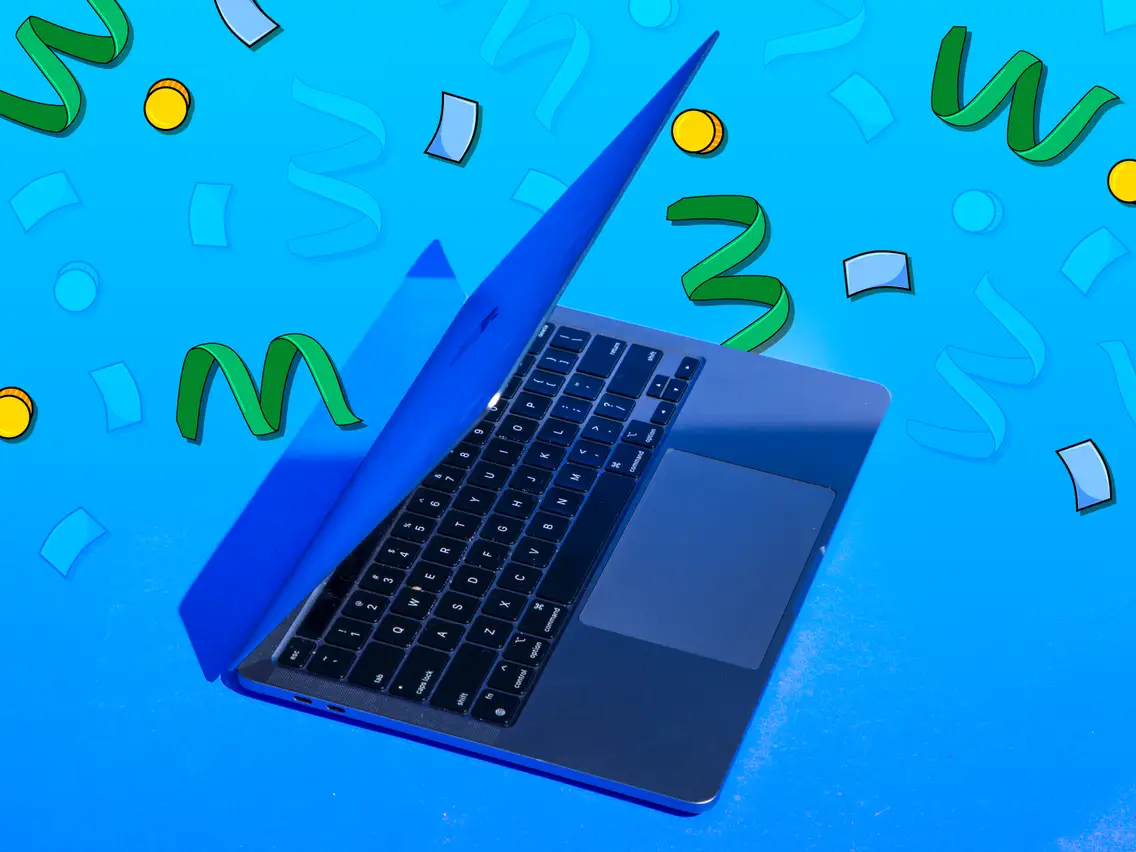
If you have a laptop that has become slow and unresponsive, you may be wondering what to do. Don’t worry, there are several ways to improve the performance of your laptop and get it running faster. In this article, we will discuss assessing the situation, potential causes of slowness, improving performance, analyzing memory usage, deleting unnecessary programs, and increasing hard drive space.

Assessing the Situation

The first step to improving the performance of your laptop is to assess the situation. Check the age of your laptop, the amount of RAM it has, and the processor it uses. This information will help you determine if your laptop is capable of running the software and applications that you need.

Potential Causes of Slowness

Once you have assessed the situation, you can start to look into potential causes of slowness. Common culprits include low RAM, a slow processor, or outdated software. It is also possible that your laptop is running too many programs or processes at once, which can cause it to slow down.

Improving Performance

Once you have identified the potential causes of slowness, you can start to work on improving your laptop’s performance. Try updating your software and applications to the latest version, as this can help improve performance and speed. Additionally, you can adjust the power settings of your laptop to maximize performance.

Analyzing Memory Usage

It is also important to analyze memory usage in order to free up more RAM. To do this, you can use a program such as Task Manager to determine which programs and processes are taking up the most RAM. Once you have identified the culprits, you can close them or uninstall them to free up more RAM.

Deleting Unnecessary Programs

Another way to improve the performance of your laptop is to delete any unnecessary programs or files that are taking up space. This includes old files, applications, and programs that you no longer need. You can also use a disk cleanup tool to remove temporary files and other junk.

Increasing Hard Drive Space

Finally, you can increase the hard drive space of your laptop by adding an external hard drive or using cloud storage. This will give you more space to store files and applications, which can help improve the performance of your laptop.

By following these steps, you can improve the performance of your laptop and get it running faster. Remember to assess the situation, identify potential causes of slowness, update your software and applications, analyze memory usage, delete unnecessary programs, and increase hard drive space. With


News Daily India

Keep Reading

The Rise of Smart Classrooms in Chennai: How Schools Are Embracing Interactive Flat Panels

Security and Privacy: How the iPhone 15 Keeps Your Data Safe

Harnessing Sustainable Power: Charging Your Home Backup Battery

Easy Web Hosting in Mumbai: Best 5 for 2024

How to Enroll device in MDM Only

How to Use HONOR X9 5G to Enjoy The Power of Photography

Add A Comment

Leave A Reply Cancel Reply

You must be logged in to post a comment.

Latest Posts

Commercial vs. Residential Property Investment in Dubai: Which Delivers Stronger Returns in 2026-27?

December 3, 2025

Evolution of Mirinda Advertising in India From the 90s to Now

November 6, 2025

Why RCS Services and CCaaS are Essential for Modern MSME Communication

October 14, 2025

Key Differences Between a Kurta and Kurti

September 25, 2025

Queenways Honors ‘Made in Heaven’ 30th Anniversary with New Videos

July 29, 2025

Crypto Payment Cards and What They Mean for Everyday Spending

July 25, 2025

Arbitrage Betting as an Alternative to Business: Reality or Illusion?

July 20, 2025

Easy Steps to Transform Your Day Makeup Look to Night Makeup Look

July 1, 2025
Facebook Twitter Pinterest Vimeo WhatsApp TikTok Instagram

Entertainment

  • Bollywood
  • Hollywood
  • South
  • Web Series
  • TV
  • Sports
  • Photos

Others

  • Lifestyle
  • Health
  • Travel
  • Horoscope
  • Career
  • Business
  • Tech

Top Page

  • Home
  • About Us
  • DMCA
  • Privacy Policy
  • Terms and Conditions
  • Contact Us

Subscribe to Updates

Get the latest creative news from FooBar about art, design and business.

© Copyright 2023, All Rights Reserved
  • Privacy Policy
  • Terms
  • Contact Us

Type above and press Enter to search. Press Esc to cancel.

Go to mobile version